【Hexo】心路歷程 - 打造屬於自己的 Blog
我知道網路上的 Hexo 教學文章超級無敵爆炸多! 雖然有用 Git 紀錄每一次的更動,但這邊還是想要紀錄一下我設定 Hexo 的一些想法,給以後的自己看。
我知道網路上的 Hexo 教學文章超級無敵爆炸多! 雖然有用 Git 紀錄每一次的更動,但這邊還是想要紀錄一下我設定 Hexo 的一些想法,給以後的自己看。
主題選擇
Hexo 最常見的主題為 Next,資源最多需要踩雷當然也減少,所以我也是選擇這樣組合,另外還有些主題也不錯功能蠻多的:
Hexo 設定
以下設定沒特別說明將會是
_config.ymlHexo 設定檔案。
語系
language: zh-TW
timezone: 'Asia/Taipei'
Permalink 與 Post 檔案分類原則
Permalink 預設非常的長,為了簡化網址需要調整一下。
文章按照年份去分類,像是 source/_posts/2022/vscode-plugins.md ,由於文章已經有資料夾,而資料夾也會顯示在網址上, Permalink 就不需要有 year 了,只要設定為:
permalink: :title/分類與標籤
category_map 和 tag_map 會對應網址連結,沒特別設定會有變中文網址,對 seo 不太友善
category_map:
  🌐 網路: network
tag_map:
  Home Assistant: home-assistant
Hexo Plugin
Sitemap
https://github.com/ludoviclefevre/hexo-generator-seo-friendly-sitemap
產生 Sitemap,記得上傳到 Google Search Console
SearchDB - 網站搜尋功能
https://github.com/next-theme/hexo-generator-searchdb
網站搜尋功能
Next 選單打開 search 連結 _config.next.yml
local_search:
  enable: true
Optimize - 優化 js, css
https://github.com/next-theme/hexo-optimize
預設 js 和 css 都不會處理過,優化一下加快速度和 seo
Related Posts - 相關文章
https://github.com/sergeyzwezdin/hexo-related-posts
由 Next 推薦的 plugin,顯示設定都預設在 Next 設定檔內了
# Related popular posts
# Dependencies: https://github.com/sergeyzwezdin/hexo-related-posts
related_posts:
  enable: false
  title: # Custom header, leave empty to use the default one
  display_in_home: false
但是 Next 顯示的連結有問題,且會顯示日期、標題、預覽,顯示太多資訊,所以改為自訂義顯示
_config.next.yml
custom_file_path:
  postBodyEnd: source/_data/post-body-end.njk

related_posts:
  enable: false # custom show on post-body-end.njk
source/_data/post-body-end.njk
{# 顯示相關文章 #}
{# 編輯於:_partials/post/post-related.njk #}

<hr>
<h2 class="popular-posts-header">{{ theme.related_posts.title or __('post.related_posts') }}</h2>
<ul class="popular-posts">


    <li class="popular-posts-item">
    {#
        <div class="popular-posts-date">{{ date(popular_post.date) }}</div>
     #}
    {#
        <div class="popular-posts-img"><img src="{{ popular_post.img }}" alt="{{ popular_post.title }}"></div>
     #}
    <div class="popular-posts-title"><a href="/{{ popular_post.path }}" rel="bookmark">{{ popular_post.title }}</a></div>
    {#
        <div class="popular-posts-excerpt"><p>{{ popular_post.excerpt }}</p></div>
     #}
    </li>

</ul>
Pin Top 置頂文章
https://github.com/netcan/hexo-generator-index-pin-top
移除原本的 index 套件,安裝 pin top 套件
yarn remove hexo-generator-index
yarn add hexo-generator-index-pin-top
在文章上方加上 top ,順序以降序排序,也可以都設為 true,將以日期排序
---
title: 🏡 My Smart Home
date: 2021-12-04 16:20:00
categories: 🏠 智慧家庭
tags: [智慧家庭]
top: 2
---
Next 主題顯示置頂

於 _config.next.yml 打開 custom_file_path 的 postMeta:
custom_file_path:
  postMeta: source/_data/post-meta.njk
source/_data/post-meta.njk
  <div class="post-meta-top-bg"></div>
  <span class="post-meta-top">
    <i class="fa fa-thumbtack"></i>
  </span>
source/_data/styles.styl
/**
  * Post Top
  */
.post-block {
  position: relative;
}
.post-meta-top-bg {
  position: absolute;
  top: 0px;
  right: 0px;
  border-top: 50px solid var(--theme-color);
  border-left: 50px solid transparent;
}
.post-meta-top {
  position: absolute;
  top: 5px;
  right: 10px;
  transform: rotate(45deg);
  color: var(--brand-color);
}
Next 主題
主要以提升使用者體驗為主,為了畫面簡潔我會移除一些我認為使用者不需要知道的資訊。
以下設定沒特別說明將會是
_config.next.yml主題設定檔案。
關閉 Site State
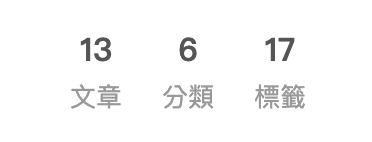
site_state: false顯示 License
creative_commons:
  sidebar: true
歸檔(archives)其實是文章列表
歸檔頁面就是照年份列出所有文章,很多用 hexo 建置都會有這頁,但根本看不懂這頁的用途,沒有使用者會想要點 歸檔 頁面,所以我將其改名為 文章列表 。
更改 icon,調整順序第2個
menu:
  home: / || fa fa-home
  archives: /archives/ || fa fa-list
  categories: /categories/ || fa fa-th
  tags: /tags/ || fa fa-tags
設定語系檔案 source/_data/languages.yml
https://theme-next.js.org/docs/theme-settings/internationalization.html
# node_modules/hexo-theme-next/languages/zh-TW.yml
zh-TW:
  title:
    archive: 文章列表
  menu:
    archives: 文章列表
Footer
設定年份、開啟動畫(跳動)、關閉強力驅動
footer:
  since: 2022
  icon:
    name: fa fa-heart
    animated: true
  powered: false
主題色
#1CAE9F
Theme Color
會更改 header 背景的顏色和 theme-color 的 meta tag
# Browser header panel color.
theme_color:
  light: "#1CAE9F"
  dark: "#1CAE9F"
Footer icon color
footer:
  icon:
    color: "#1CAE9F"
Sidebar color
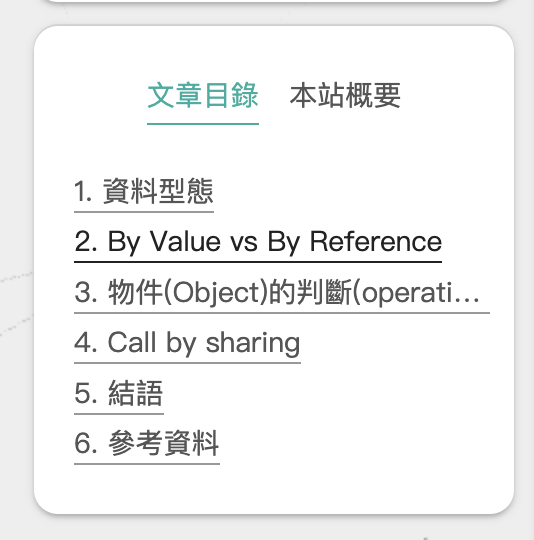
這個沒有參數可以改,要用 Custom Files 去更改
source/_data/variables.styl
$primary = #1CAE9F

/**
 * overwrite theme variables
 * @see node_modules/hexo-theme-next/source/css/_variables/Pisces.styl
 */

 // Sidebar
// --------------------------------------------------
$sidebar-nav-hover-color = $primary
$sidebar-highlight = $primary
文章 Meta
顯示於文章下方的資訊,關閉更新時間

post_meta:
  updated_at:
    enable: false
文字置左
預設 justify 常常會出現奇怪的排版
text_align:
  desktop: left
  mobile: left
Mobile 畫面間距
減少文章顯示的左右間距
# Reduce padding / margin indents on devices with narrow width.
mobile_layout_economy: true
Codeblock
還是習慣使用 onedark 的樣式,Hexo 那邊有可選擇用 highlight 或是 prismjs 渲染
渲染選擇 highlight
prismjs 會讓字體變大成 18px,而且不能使用 Next 的 mac style
codeblock:
  # Code Highlight theme
  # All available themes: https://theme-next.js.org/highlight/
  theme:
    light: base16/onedark
    dark: base16/onedark
  prism:
    light: prism
    dark: prism
  # Add copy button on codeblock
  copy_button:
    enable: true
    # Available values: default | flat | mac
    style: mac
顯示滾動百分比顯示在 back2top 上
back2top:
  scrollpercent: true
圖片預覽 - Fancybox
fancybox: true留言功能選擇 - disques
- Disqus
- 登入選擇多 FB/Google
- 版面雜亂
- Gitalk
- 需要登入 Github,綁定 Github issue
- 畫面簡潔,功能方便,但要由權限過多
- utterances
- 需要登入 Github,綁定 Github issue
- 畫面簡潔,適合單純的留言
我選擇登入選擇多的 Disqus
關閉動畫
動畫會增加從進來網站到看到文章的時間,Next 無法調整動畫順序和時間,所以乾脆關掉
motion:
  enable: false
載入進度條
載入時網頁上方顯示的進度條
pace:
  enable: true
  color: black
  theme: flash
CDN 設定
啟用 CDN 載入一些第三方套件,會加快很多
vendors:
  internal: cdnjs
預載入 - 優化 SEO LCP
加入 preconnect 加速第三方資源載入
# Preconnect CDN for fonts and plugins.
# For more information: https://www.w3.org/TR/resource-hints/#preconnect
preconnect: true
常常用圖片來源 unsplash 也加進去
custom_file_path:
  head: source/_data/
source/_data/head.njk
{# SEO #}
{# improve LCP(Largest Contentful Paint) #}
<link rel="preconnect" href="https://images.unsplash.com" />
動態背景
canvas-nest.js 自 v8.0.0 後就因為 太消耗 CPU 被移除了,可以手動在 footer.njk 加入
custom_file_path:
  footer: source/_data/footer.njk
source/_data/footer.njk
{# canvas-nest #}
{# https://github.com/theme-next/theme-next-canvas-nest #}
<script color="34,34,34" opacity="0.5" zIndex="-1" count="99" src="https://cdnjs.cloudflare.com/ajax/libs/canvas-nest.js/1.0.1/canvas-nest.js"></script>
或者是使用新的 ribbon.js ,但是預設會有 點擊更換背景 的奇怪功能,還是需要手動引入把這功能取消掉,Next 的設定則不需要打開
canvas_ribbon:
  enable: false
source/_data/footer.njk
{# ribbon.js without click #}
{# https://github.com/hustcc/ribbon.js #}
<script>
  function removeRibbonClick() {
    document.onclick = null
    document.ontouchstart = null
  }
</script>
<script size="150" alpha='0.4' zIndex="-1" src="https://cdnjs.cloudflare.com/ajax/libs/ribbon.js/1.0.2/ribbon.min.js" onload="removeRibbonClick()"></script>
Next 客製化調整
Global - PaddingTop, 圓角…
因應圓角設計,上方增加間距
// padding-top for main
+desktop() {
  .main {
    padding-top: 12px; // same as sidebar margin-top
  }
}
預設太過方正,增加圓角讓畫面更加舒服 延伸閱讀: UI/UX|下次主管問你為什麼 UI 要用圓角的時候
// rounded corners
+desktop() {
  .header-inner, .sidebar-inner, .post-block, .comments, .pagination {
    overflow: hidden;
    border-radius: 12px !important;
  }
}
移除最上方的 headband
// remove headband
.headband {
  display: none !important;
}
mobile 顯示 subtitle 時會讓 header 看起來過高,所以隱藏讓版面看起來更舒服
// hide subtitle for mobile
+tablet-mobile() {
  .site-subtitle {
    display: none !important;
  }
}
列表(Archive Page) 隱藏 繼續努力(Keep on posting)
// Hide "Keep on posting"
.archive .collection-title {
  display: none !important;
}
文章頁面(Post Page) h3 不要顯示底線
h1 過多會影響SEO,我的內文子標題通常是用 h2 和 h3,但是預設 h3 會有底線,不太好辨識是 h2 還是 h3,所以把 h3 的底線隱藏
.post-body h3 {
  border-bottom: none !important;
}
參考